
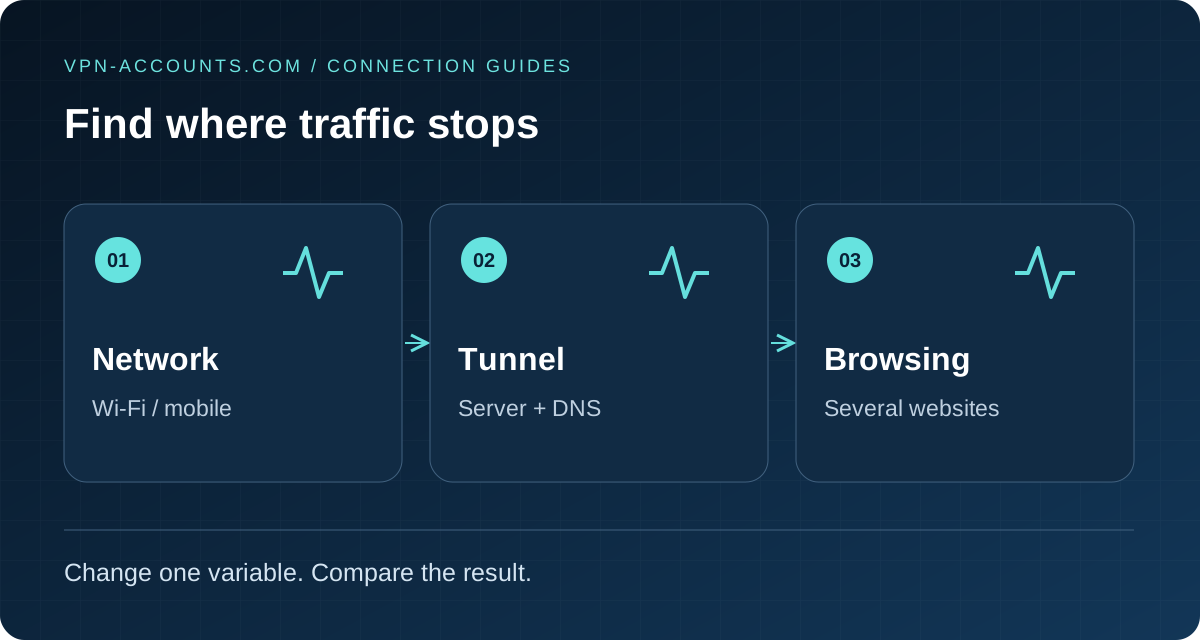
Quick answer: test the network, then the tunnel
If your VPN says connected but several unrelated websites will not load, first check whether the underlying connection works. Complete any Wi-Fi login, reconnect the VPN, then compare another current server and another supported protocol. If the problem persists, separate DNS lookup failures from routing or data-transfer problems. Change one variable at a time and record what changes.
If only one website fails while other pages load, start with that destination’s error instead. A single site’s 403 response or account restriction is different from losing internet access across the device.
On this page: Baseline · Server and protocol · DNS · Routing · Device checks · Support · Sources
1. Establish a useful baseline
Close sensitive browsing and pause transfers. If you are comfortable briefly testing without the VPN, disconnect it and open two ordinary HTTPS websites. This test exposes ordinary traffic to the underlying network; reconnect before resuming private activity. If a kill switch prevents that comparison, use a separate device or trusted network rather than blindly disabling protection.
- Neither page opens without the VPN: check Wi-Fi signal, mobile data, the router or a required sign-in page. Fix ordinary connectivity before changing the VPN profile.
- Both open without it but fail after connecting: continue with the server comparison below.
- Only one destination fails: inspect its outage, account or access message. Use the blocked-website guide for that narrower problem.
On hotel or airport Wi-Fi, the sign-in session can expire even after an earlier successful login. Mozilla documents that a VPN or proxy can prevent a captive portal from appearing. Complete the legitimate network login, then reconnect. Do not install software offered by an unexpected portal. Mozilla captive portal guidance.
2. Compare another server, then another method
Choose another current server in the same country. Reopen the same test pages. If they now load, the original server or route is a stronger suspect than your entire account. Keep the working result and the failing hostname for Support.
If the second server fails too, try another protocol offered by your client. For example, compare WireGuard with a supported OpenVPN option. Keep the network and location as similar as possible. Do not simply edit the port in a manual profile: the server must support the selected method and port.
Our WireGuard, OpenVPN and VLESS comparison explains the options. Stealth is available in supported desktop VPNClient applications; it is not a universal mobile setting.
Finally, compare a trusted second network, such as your own mobile data. If the same configuration works there, focus on the original network’s login, filtering or routing. A difference is useful evidence, not proof of a nationwide block.
3. Look for DNS-specific symptoms
DNS translates names such as example.com into addresses. Errors such as a name not resolving can point toward DNS, but a browser error alone is not a complete diagnosis. OpenVPN’s documentation distinguishes an unknown name from a DNS server that cannot be reached. OpenVPN DNS troubleshooting.
On Windows, the read-only command nslookup example.com can show whether that lookup receives a response. Record whether it times out, returns a name error or succeeds. A successful result does not prove every app’s DNS works: browsers may use their own secure DNS settings. A timeout can also reflect filtering or routing to the resolver.
Reconnect using a fresh provider profile if yours was edited. Record any custom DNS, encrypted-DNS app or filtering software you added. Restore only your own documented change, one at a time, then retest. Do not replace the resolver with a random public address as the first fix; it can change privacy or break names required by a managed network.
Avoid treating “a numeric IP opens in the browser” as a universal DNS test. HTTPS sites often require the hostname and a matching certificate. Likewise, a failed ping does not prove there is no connection; networks can block ICMP separately.
4. Check what the tunnel actually carries
A connected label is not an end-to-end browsing test. In WireGuard, generate traffic and look for a recent handshake and increasing received data where your client exposes them. No recent handshake suggests investigating the endpoint, account configuration or route to the peer first. A handshake with failing browsing leaves DNS, onward routing and traffic handling to investigate.
For manual profiles, keep provider-supplied routes intact. WireGuard’s AllowedIPs influences which destination addresses are sent to a peer; replacing it with a value from an unrelated tutorial can change the connection’s scope. See the WireGuard Quick Start. If you intended a full tunnel, ask Support to check a redacted description of the route settings rather than inventing replacements.
If small requests work but larger pages or downloads repeatedly stall, tell Support that pattern. MTU or path problems are possibilities, not a reason to apply a universal number. OpenVPN’s performance troubleshooting documentation discusses these issues for Access Server administrators; its server commands are not instructions for a VPN-Accounts.com customer to run.
Do not permanently disable IPv6, the firewall or certificate validation as a general fix. Those changes can hide the symptom while creating a different problem.
5. Check competing clients and device settings
Disconnect other VPN tunnels before testing. A second VPN, proxy, filtering application or leftover route can interfere with the intended connection. On a managed work or school device, ask the administrator before changing required controls.
On Android, note any always-on VPN or “block connections without VPN” policy and which app it applies to. On iPhone or iPad, confirm the selected VPN profile belongs to the client you are testing. On Windows or macOS, restart the VPN client and compare another browser before removing adapters or reinstalling software.
If internet remains blocked after you deliberately disconnect, a traffic-blocking rule may still be active. Review the client’s documented kill-switch behaviour. Do not leave protection disabled just to make the connected indicator look successful. Our kill-switch guide explains the distinction.
6. Send a comparison that Support can use
Include the device and OS, client version, country, network type, server hostname, method and time of failure. Add the exact error and your results for:
- VPN disconnected, if safely tested.
- Another server in the same country.
- Another supported method.
- Another trusted network.
- Several websites versus one destination; handshake or DNS outcome if checked.
Send these through Support. Never include the full configuration, a private key, your password or an unredacted VPN QR code. This guide does not ask you to upload account files to a public diagnostic service.
Sources and review
Reviewed October 19, 2026. Primary references: Mozilla on captive portals, OpenVPN on DNS, WireGuard configuration and OpenVPN performance diagnosis. The sequence is a diagnostic framework, not a claim that all failures have the same cause or that we tested your device.
Useful answers
Frequently asked questions
Why does my VPN say connected when websites do not open?
The client may have enabled a tunnel while DNS, data transfer, routing or the local network still fails. Test several websites, another current server and another trusted network to narrow it down.
Should I turn off my firewall or IPv6?
Do not use permanent firewall or IPv6 changes as a blanket fix. Record the symptom and compare supported settings with guidance for your client.
Does a 403 error mean my VPN has no internet?
Not necessarily. A 403 means the destination refused that request. If other websites work, investigate that site or its access rules rather than treating it as a complete loss of connectivity.