
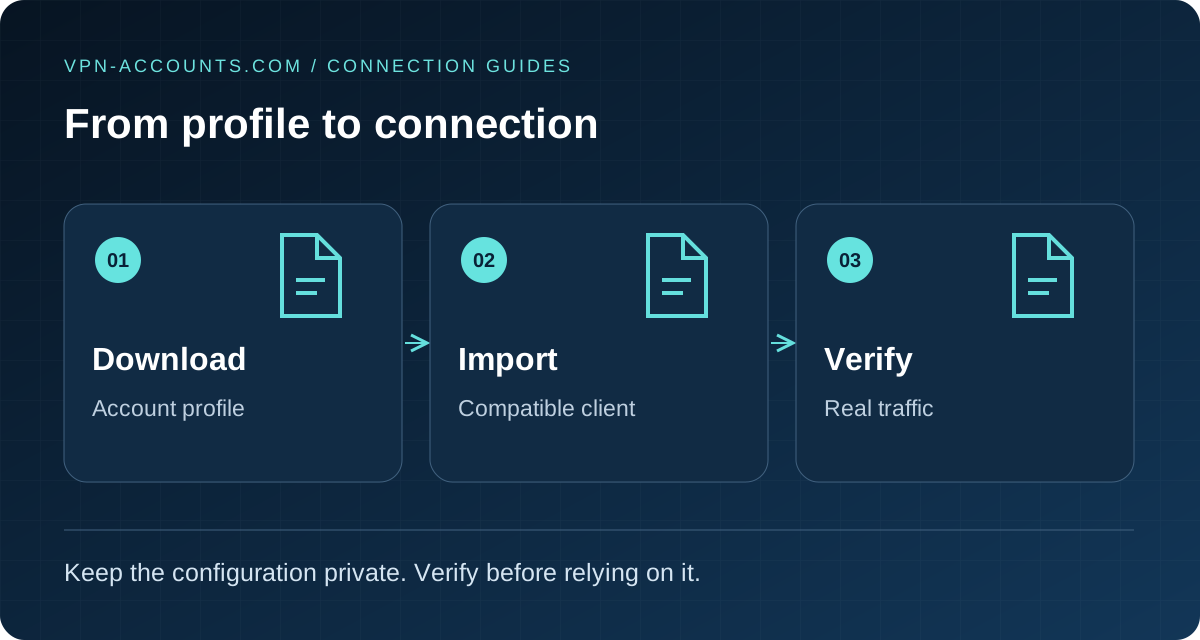
Quick answer: download, import, activate, verify
Get a WireGuard configuration from your VPN provider, install a compatible client, choose its file-import option and select the downloaded .conf file. Activate the tunnel, approve the operating system’s VPN permission if requested, and test browsing. The app being installed—or the tunnel being enabled—does not by itself prove that traffic reaches the VPN server.
This guide covers importing a provider file into the standalone WireGuard app. If you use WireGuard inside VPNClient, follow the device setup guide instead; those app controls are different.
On this page: Before import · Get your file · Device instructions · Verify · Import errors · Sources
Before you begin
- An active VPN account that supplies WireGuard configuration for the intended server.
- The official WireGuard app or another client that explicitly supports the provider’s format. Use WireGuard’s official installation links rather than a download mirror.
- A trusted connection for downloading the app and accessing your account.
- A private place to store the configuration. A profile may contain a private key, so treat it as a credential.
An OpenVPN .ovpn profile and a VLESS configuration are different formats. Renaming either to .conf will not turn it into WireGuard. Our protocol comparison explains which method fits which client.
1. Download your VPN-Accounts.com configuration
Sign in to the customer dashboard after your account is active. Open its WireGuard configuration section, select an available server and use the configuration download provided for your account. Keep the server choice with the file so you can identify the correct tunnel later.
Use a fresh download if you cannot tell where an old file came from. Do not replace its keys or endpoint with values from a public example. The provider’s generated file supplies the connection details; this guide does not require you to build a server or generate replacement keys manually.
If downloading produces a login page, an error message or an empty file, return to the dashboard and resolve that problem before importing. Do not paste the file into an online “repair” or conversion tool.
2. Import the file on your device
Exact button wording can vary by app version and language. The goal is to import a configuration from a file, not create an empty tunnel or export an existing one. The diagram above illustrates the workflow; it is not an app screenshot.
Windows
- Open the WireGuard application.
- Use Import tunnel(s) from file, or the file-import option beside Add Tunnel.
- Select the
.conffile downloaded for your account. If your browser hid extensions, confirm you selected the configuration rather than an HTML error page. - Select the imported tunnel and choose Activate. Approve any legitimate system permission prompt.
- Open ordinary websites and inspect the tunnel details as described below.
macOS
Open WireGuard and choose the option to import a tunnel from a file. Select the downloaded configuration and allow the application to add a VPN configuration if macOS asks. Enable that tunnel, then test traffic. Installing the application is separate from importing the profile.
iPhone and iPad
Save the account configuration somewhere you control in the Files app. Open WireGuard, add a tunnel and select its file/archive import option. Pick your downloaded file, approve the VPN configuration request and switch on the tunnel. If you cannot find the file, check the browser’s Downloads location in Files.
Android
Open WireGuard, tap the add button and select the option to import from a file or archive. Use the system file picker to select the downloaded profile, then enable it and approve Android’s VPN connection request. If another VPN is already active, disconnect it before testing this one.
QR import is an alternative only when your provider actually supplies a suitable QR code. A VPN QR code can contain connection secrets; do not share it. This guide does not assume the VPN-Accounts.com dashboard provides QR delivery.
Linux and routers
Use the import method supported by your distribution’s network manager or router firmware. Do not apply the phone instructions to an unrelated interface. WireGuard’s Quick Start covers command-line configuration for experienced users; a router requires its own compatible VPN client function. Ask Support about an uncertain model before purchasing access for it.
3. Check the connection before relying on it
Load two unrelated HTTPS websites. Where the client exposes them, look for a recent handshake after generating traffic and increasing received data. “Active” can mean the local interface has been enabled; it is not a complete end-to-end test.
For a profile intended to carry all internet traffic, compare your public IP before and after connecting using a reputable IP-check service. If you permit such a comparison with the tunnel off, close sensitive activity first. An IP change alone does not prove that every app, DNS request or IPv6 connection uses the intended path.
Check the behaviour you actually need: browsing, your destination app, and reconnecting after a network change. Review the client’s traffic-blocking and DNS controls rather than assuming it inherits VPNClient settings. For a tunnel that is enabled but cannot browse, follow VPN connected but no internet.
What if the import or connection fails?
The client says the file is invalid
Confirm it is the WireGuard download, not an .ovpn profile, a VLESS file or a saved website. Download it again from your account. If the app reports an unsupported field, record the field name and client version for Support without sending its value or the full profile. Do not delete security settings merely to make import succeed.
A tunnel with that name already exists
Give the new tunnel a distinct name using the client’s controls, or identify the old entry before replacing it. Do not delete your only working setup without knowing how to restore it. Avoid running duplicate copies of the same profile on multiple devices unless your provider explicitly supports that arrangement.
It activates, but there is no recent handshake
Try browsing to generate traffic, confirm ordinary internet access is available, and compare a second trusted network. Check that the profile is current and the account active. A stale endpoint, mismatched keys or a restricted route can all matter; the indicator alone does not identify which cause applies.
A handshake appears, but browsing still fails
That narrows the investigation to data transfer, routing, DNS or the destination. Use the no-internet diagnostic guide and change one variable at a time. Do not guess new endpoint ports or private keys.
You shared the configuration by mistake
Remove the exposed copy and contact the provider about replacing or revoking the affected configuration. Deleting a public post does not undo an earlier disclosure. Do not assume downloading another copy automatically invalidates the original key.
Sources and scope
Reviewed October 19, 2026 using WireGuard’s official downloads, Quick Start, Windows client project and Apple client project. Device steps describe the file-import workflow; menus vary. This article does not claim a fresh authenticated connection test on every platform or router.
Useful answers
Frequently asked questions
Can I use an OpenVPN file in WireGuard?
No. OpenVPN and WireGuard use different configurations. Download a WireGuard profile; changing the filename does not convert it.
Does Active mean my WireGuard connection works?
Not by itself. Generate traffic, check for a recent handshake and received data where available, and test actual browsing.
Is a WireGuard configuration safe to share?
Treat it as a credential because it may contain a private key. Do not publish the file, a QR code representing it, or unredacted screenshots.