
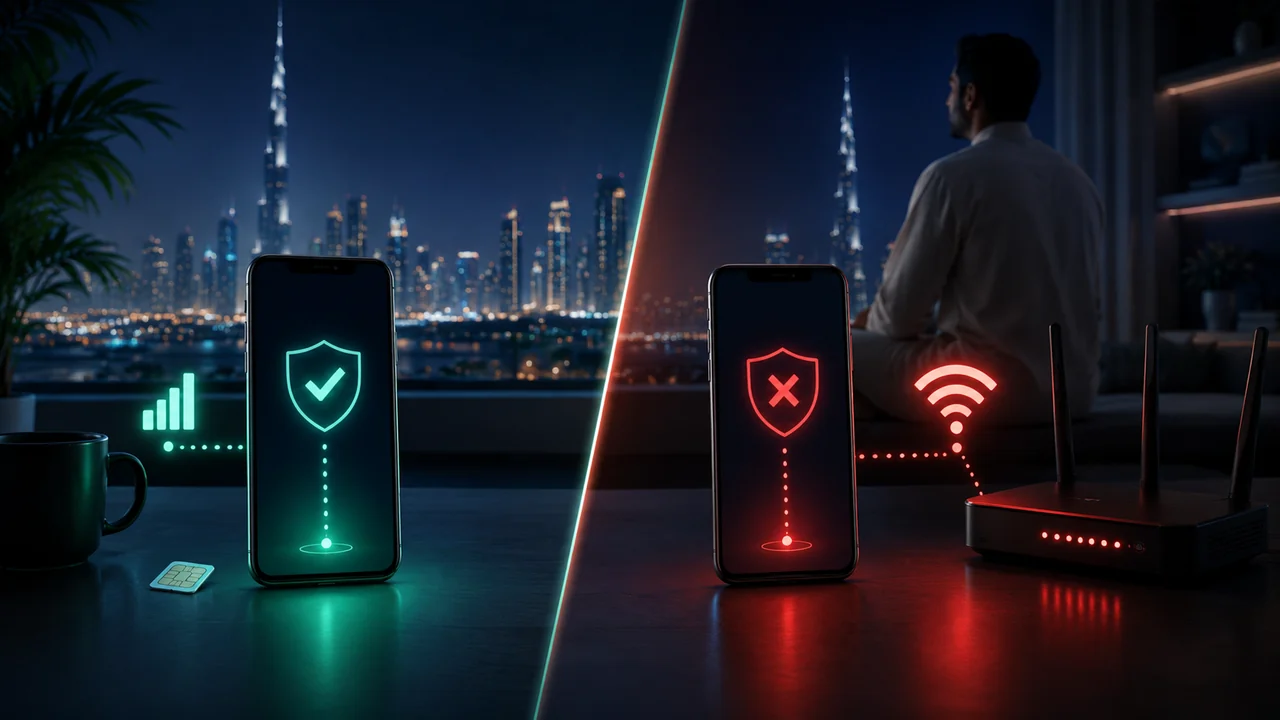
Before the sequence: make the test fair
Use one device. Note the VPN server and connection option. Close downloads and background updates. Test one ordinary webpage without the VPN on each network, then use the same webpage through the VPN. Fully disable Wi-Fi during the mobile test so the phone does not silently reconnect.
If the mobile carrier is du and home broadband is Etisalat, both the provider and access technology changed. If both paths are Etisalat, the cellular/home-router difference still matters. The Etisalat guide covers provider-specific failure modes without assuming provider intent.
One-change-at-a-time isolation sequence
- Confirm ordinary Wi-Fi browsing. Disconnect the VPN and open two normal websites. If they fail, solve the local connection first.
- Complete the captive portal. On hotel, airport, café, apartment, school, or workplace Wi-Fi, open a browser and finish any sign-in or terms page.
- Repeat the unchanged VPN test. Use the same account, server, and connection option that just worked on mobile data.
- Restart only the client. Close it fully, reopen it, and test the same route. Record the exact error or connected-with-no-traffic state.
- Try one other current server. Keep the Wi-Fi and connection option unchanged. If only one server fails, report that server.
- Try one other supported option. Use WireGuard, OpenVPN, or IKEv2/IPsec as available on the client/platform. Stealth is an additional option on supported desktop VPNclient applications.
- Repeat the mobile control. Return to the original known-working mobile test. If it now fails too, the earlier conclusion needs revision.
- Document the result. Save the network type, server, option, time, and exact error for Support.
Captive portals and managed Wi-Fi
A VPN often cannot start before the Wi-Fi grants internet access. Hotel and public portals may appear only in a browser. Workplace and school networks can also apply firewall or acceptable-use policies. Use only networks and configurations you are authorized to use; do not try to defeat an organization’s controls.
If ordinary browsing works after the portal but the VPN still fails, continue the sequence. A portal cookie expiring mid-session can also make a previously working route stop.
Home-router and ISP-path behavior
Restarting the router can resolve a temporary local state, but preserve custom settings and do not factory-reset equipment as a first step. Test from another device only after the same-device comparison, because changing both network and device weakens the evidence.
A result that differs between du mobile data and Etisalat home Wi-Fi makes the network path worth examining. It does not establish a particular provider policy or filtering technology. Start with the UAE-specific troubleshooting router if other symptoms are involved.
DNS and IP-version differences
DNS behavior can make a site fail even when the VPN tunnel is active. Reconnect, open a fresh browser session, and compare more than one destination before treating DNS as the cause. Do not install an unknown DNS or configuration profile from a forum.
IPv4 and IPv6 routing can differ across mobile and Wi-Fi networks, but only change IP-version settings if your current operating-system, router, or VPN support documentation provides a clear path. Record the original setting so the change is reversible. The comparison is diagnostic; it is not proof that IPv6 is the cause.
Server issue versus device issue
If one server fails on both Wi-Fi and mobile data, try another current server. If every server fails only on one device, compare a second supported device on the same Wi-Fi. If both devices fail only on that Wi-Fi, the local network path becomes more likely.
The global VPN Not Working guide covers client, account, server, and protocol checks outside the UAE context. The UAE blocked-sites guide is the better destination when the VPN connects but one site remains unavailable.
What to send Support
Include the device and OS, Wi-Fi type and provider if known, mobile carrier, VPN server, connection option, exact error, and each controlled result. Never send the VPN password, full payment-card details, private keys, or sensitive account credentials.
References
Useful answers
Frequently asked questions
What does it mean when a VPN works on mobile data but not Wi-Fi?
When the same device, account, server, and connection option work on mobile data but fail on Wi-Fi, the Wi-Fi path becomes a strong area to investigate. That is evidence for troubleshooting, not proof of deliberate blocking.
Should I change the VPN server and protocol at the same time?
No. Change one variable, record the result, and then move to the next. Otherwise you will not know whether the network, server, connection option, or device changed the outcome.
Can a hotel captive portal stop a VPN from connecting?
Yes. Many hotel and public networks require a browser sign-in or terms page before ordinary internet access is available. Complete that portal before starting the VPN.
Does the comparison prove my Wi-Fi provider blocks VPNs?
No. Router behavior, DNS, captive portals, managed-network rules, outages, congestion, server reachability, and IP-version differences can produce a network-specific result without proving provider intent.
When should I contact Support?
After repeating the same device/server test on both networks and trying one other current server or supported option. Share the Wi-Fi type, provider if known, device, exact error, and results without sending credentials.