
Set up VPN on Windows.
Install VPNClient on Windows 11 or Windows 10 and connect using the VPN credentials supplied after purchase.
Install, sign in and connect.
Before you start: Have an active VPN account, your VPN username and password, and a working internet connection ready.
Download, install and open VPNClient.
Use the Windows download above, run the installer and follow its prompts. Open VPNClient when installation finishes.
If Windows displays a security warning you do not understand, pause and ask Support to help check it before continuing.
Enter your VPN credentials.
Sign in with the VPN username and password supplied after purchase. These may differ from your website login credentials.
Choose a server and connection option.
Open the server list using the location selector on the main screen. Choose a nearby server, or select the country you need. Use Search location to find a location in the list.
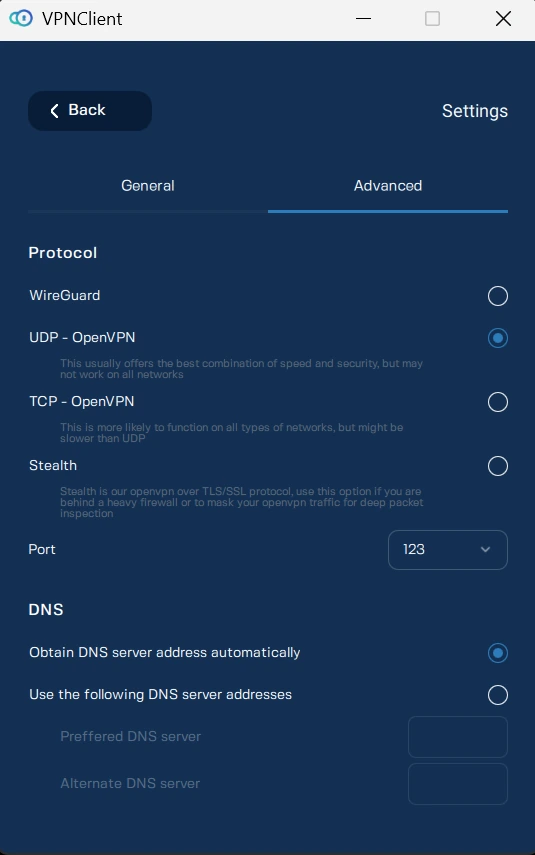
In Settings → Advanced → Protocol, start with WireGuard where available.
View connection options and Windows settings ↓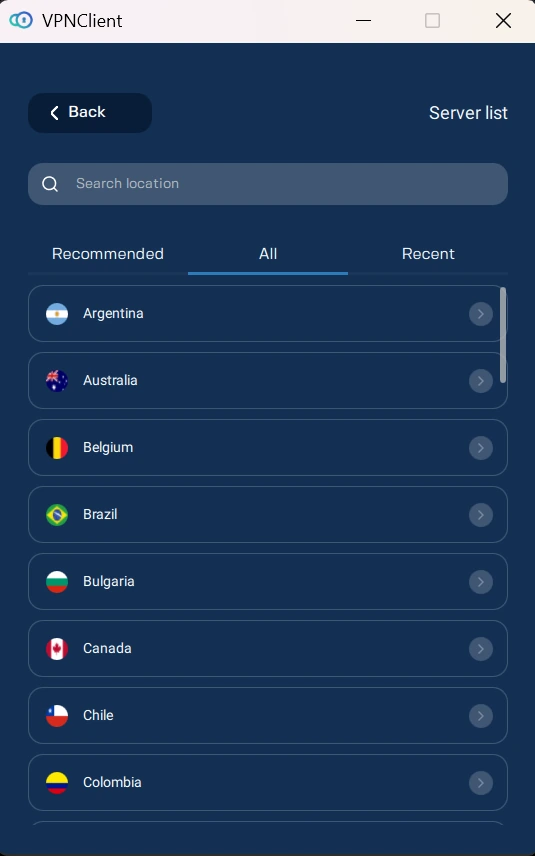
Find and select a server. Open image to enlarge. Connect and confirm.
Return to the main screen and select Switch ON. Wait for VPNClient to show an active connection and your selected server.
If the connection does not complete, follow the connection checks below.
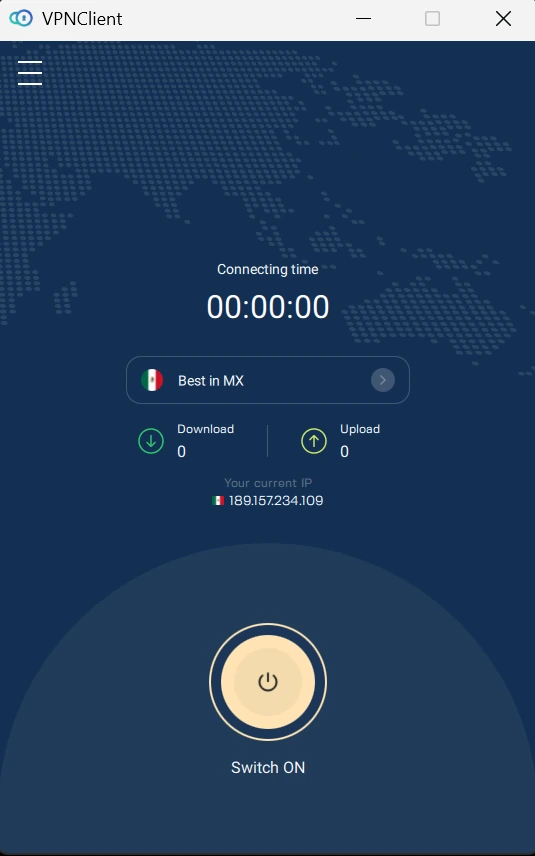
The main screen before connecting. Open image to enlarge.
Connection options and Windows settings
Connection options
Network Lock
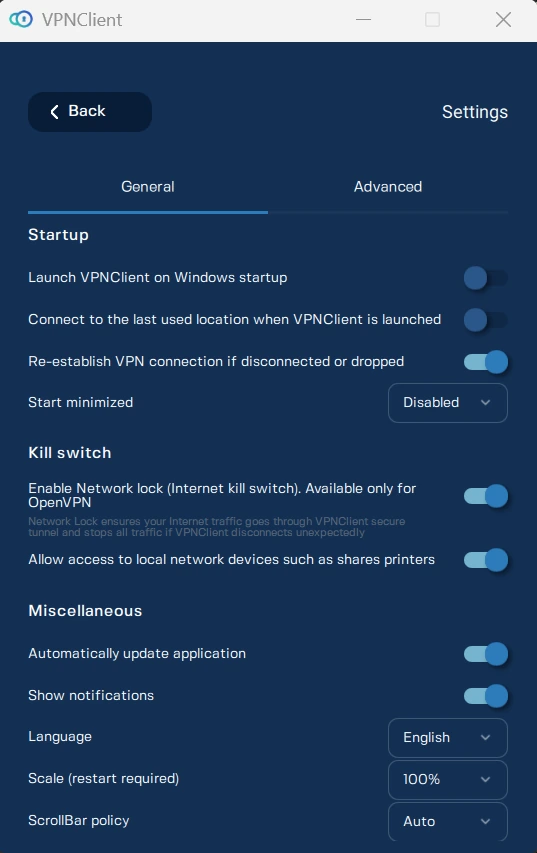
Under Settings → General, Network Lock is the internet kill switch for OpenVPN connections only. Check that it is enabled before relying on it to stop traffic if VPNClient disconnects unexpectedly.
Auto-connect
In General settings, enable Connect to the last used location when VPNClient is launched if you want to connect when opening the app. Launch VPNClient on Windows startup controls whether the app opens with Windows; Re-establish VPN connection if disconnected or dropped controls reconnecting after a drop.
Leave port and DNS settings unchanged unless you are troubleshooting or following specific instructions.
Legacy compatibility: L2TP/IPsec and PPTP are secondary options for older or manual connections. Ask Support for current setup guidance.
Set up OpenVPN manually
- Install OpenVPN Connect for Windows from the official OpenVPN website.
- Open the OpenVPN configuration generator in your dashboard and sign in if prompted. In the dashboard’s OpenVPN section, choose a Server and Port, then select Download OpenVPN config to obtain the current
.ovpnfile. - Import the downloaded
.ovpnfile into OpenVPN Connect. - Connect with your VPN username and password when requested.
For other manual connections, sign in to your dashboard to generate WireGuard or VLESS configurations or view manual setup values.
Having trouble connecting?
- Check your VPN credentials.
- Try another server.
- Restart VPNClient.
- Try another supported connection option.
- Compare another network and record the error.
Need a VPN account? Choose a plan →